
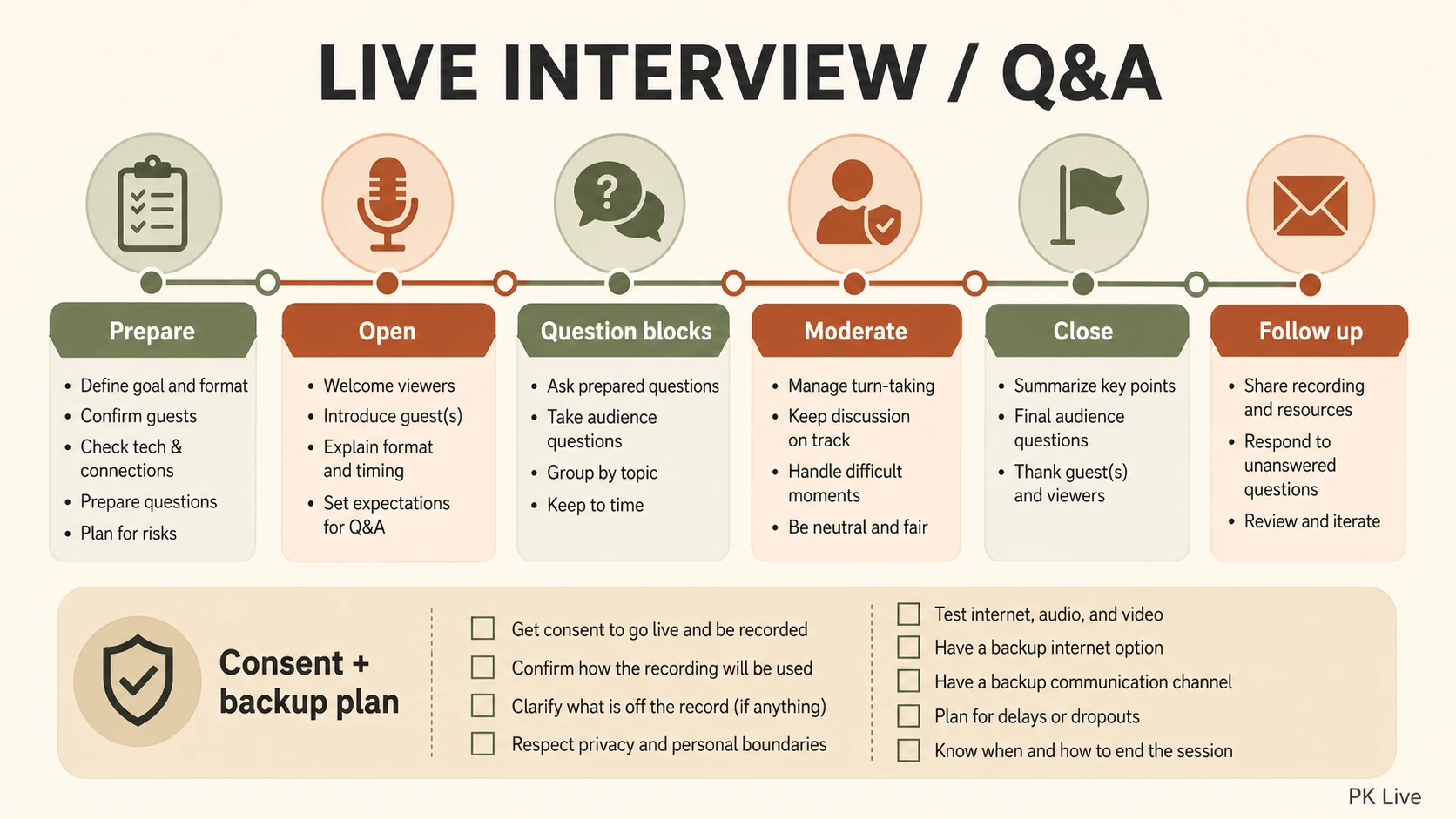
A live interview or Q&A becomes easier to manage when the host prepares the run-of-show before opening the broadcast. The goal is not to fill every second. It is to make the guest comfortable, give the audience a clear route into the conversation, and have a plan for questions, moderation, technical issues, and follow-up.
Last updated: 20 August 2026. Check the current platform terms and official rules before acting.
Build the event around one reader outcome
Choose one practical promise you can keep: introduce a guest, explain a process, answer a defined set of questions, or show how a project works. A narrow outcome makes the title, questions, moderation, and follow-up easier to align.
| Stage | Host action | Guest or audience check |
|---|---|---|
| Before | Agree on topic, length, questions, and recording use | Consent, pronunciation, boundaries, and sensitive subjects |
| Opening | Explain the topic, guest, timing, and chat rules | Viewers know how to ask questions |
| Main conversation | Ask one question at a time and keep a backup prompt list | Guest has room to answer without interruption |
| Q&A | Screen questions and group duplicates | Private details and abusive content stay out |
| Close | Summarise, name next steps, and explain where the recording goes | Guests and viewers know how clips or quotes will be used |
A practical run-of-show
- Five minutes before: check the camera, microphone, connection, lighting, guest link, and moderation controls.
- Opening: welcome the audience, name the topic, introduce the guest, and state the chat boundaries.
- Context: ask the guest for a short background connected to the topic, not an entire biography.
- Core questions: use three to five prepared questions that move from context to an example and then to a practical takeaway.
- Audience questions: read the question first, remove personal data, and tell the audience when a question cannot be answered.
- Closing: summarise two or three points, thank the guest, and say what happens to the recording or clips.
Consent and moderation basics
Get clear consent before recording and before reusing a guest’s answer as a clip. Tell the guest where the recording may appear. Do not reveal private contact details, account records, or a viewer’s personal story without permission. Use a moderator when possible, and have a prepared message for harassment, scams, impersonation, and off-topic payment requests.
When something goes wrong
- If audio fails, pause the conversation and check the selected microphone rather than speaking over silence.
- If the connection drops, use the prepared closing or restart message and tell viewers where to find the next update.
- If a guest shares private information, stop the segment, ask them to remove it, and do not reuse the clip.
- If a question contains a claim you cannot verify, label it as unconfirmed and promise a correction only after checking a reliable source.
After the interview
Review the recording for audio problems, privacy issues, inaccurate statements, and moderation gaps. Write a short summary with timestamps, link to the relevant source or guest page, and correct any material error before promoting a clip. Keep the original recording and consent note in a secure location.
Related streaming guides
For a first-stream setup, see the beginner streaming guide. For encoder and YouTube checks, use the YouTube Live setup guide. For camera framing, see the on-camera guide.
Sources and limits
Updated 20 August 2026. Platform tools and community rules can change. Follow the current help documentation for the platform you use, obtain consent before recording or clipping people, and correct factual errors after review. This is an editorial workflow, not a promise of sales, reach, or audience growth.
Use this run-of-show with beginner setup and YouTube Live checks.